Turn receipts into a spreadsheet for your expense report
20 receipt photos and PDFs in one sheet, every total right and a grand total that adds up.
A real run on 12 November 2026, on a Linux computer, using Claude Code with Opus, on a Claude plan. The waiting is sped up; it took 1 min 32 s in real time.
The short answer.
For a handful, type them in: date, shop, total, one row each, and a SUM at the bottom. For more, Excel's Data from Picture (Microsoft 365) reads one photo at a time, and expense apps scan as you go. Stella (stella.sh) reads every photo and PDF in the folder, builds one sheet with a grand total, and flags anything an expense policy may question.
Stella does this on Windows, Mac and Linux.
What happened.
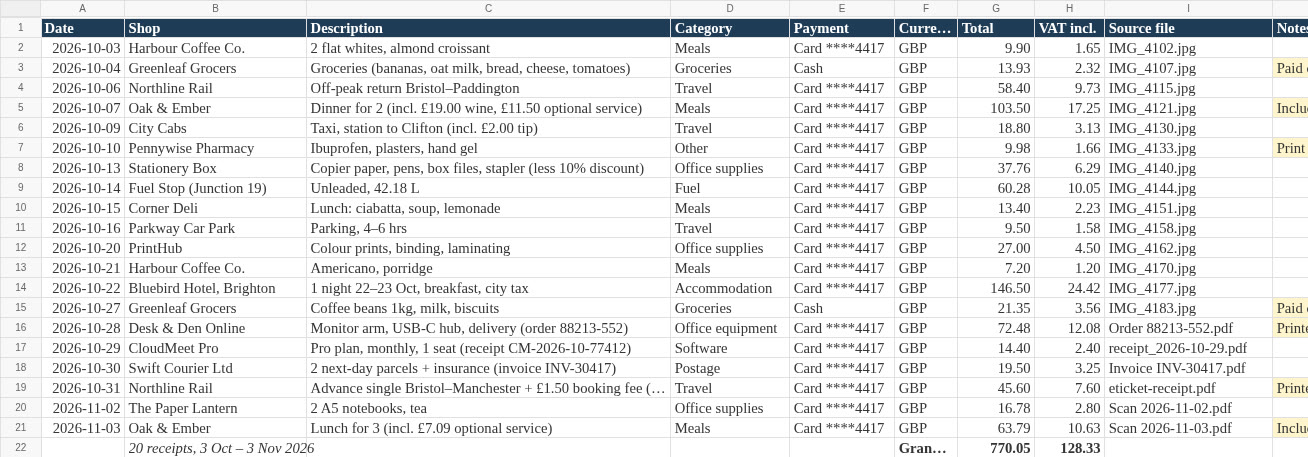
20 receipts became one Excel sheet in 1 minute 32 seconds. Checked afterwards against the answer key written before the run: all 20 rows have the right date, shop and total, none missing or doubled, and the grand total is a live SUM formula that comes to £770.05, exactly right. The receipts themselves were unchanged.
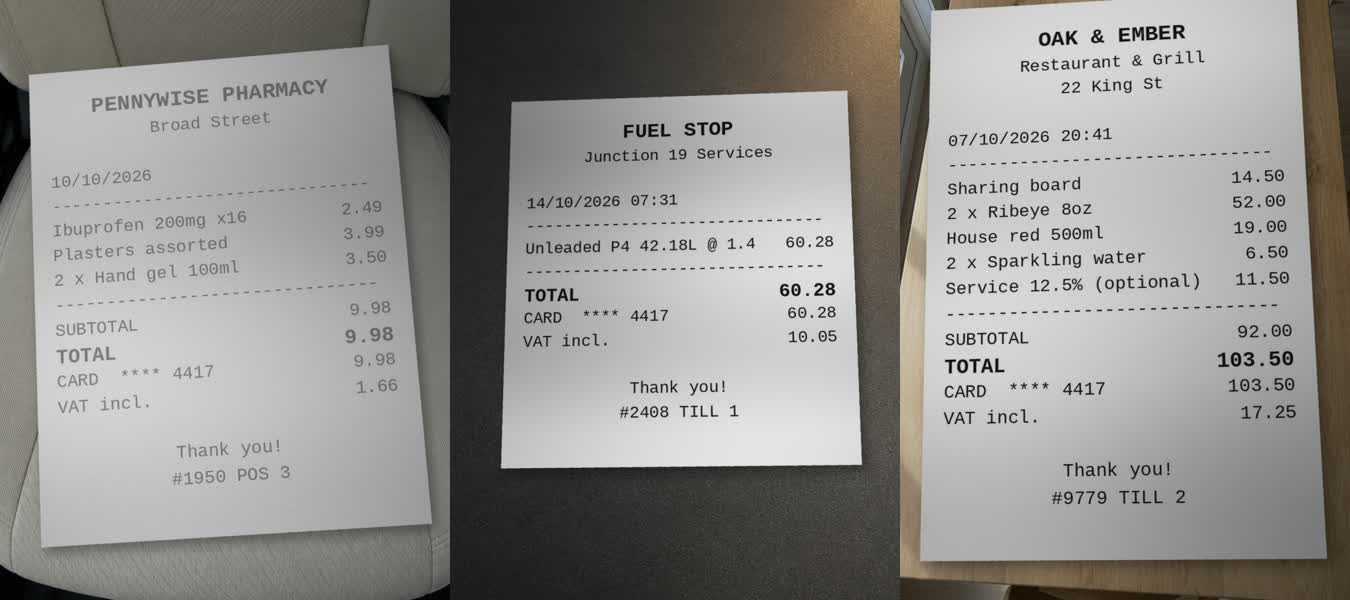
The receipts are made up for this test (fictional shops, card ending 4417): computer-printed receipts photographed at an angle with shadows, one faded, plus PDFs. They include traps: a discount, a tip, cash and change lines, a delivery date and a due date. The reading is sped up 12×, and opening the sheet 3× and 2.5×.
How Stella does it.
- Opens every receipt in the folder: in the recording 14 phone photos, 4 PDFs with text and 2 scanned PDFs that are only pictures
- Reads the photos itself, zooming in on the faded and angled ones to check the numbers
- Takes the amount actually paid, not the subtotal, cash handed over or change, and the order date rather than the delivery date
- Builds one sheet: date, shop, what it was, category, payment, total, VAT and the file it came from, with a SUM grand total
- Highlights receipts a manager may query, like groceries paid in cash or wine with dinner, and says why
The prompt.
Put all these receipts into one spreadsheet for my expense report, with date, shop and total. They're in Documents/Receipts.
This is the exact prompt from the recording. If your files are somewhere else, say where.
Do it yourself.
Set up the sheet
In Excel or Google Sheets, make columns for Date, Shop, Description, Total and the file name, and format the Date column as a date and Total as currency. One row per receipt keeps it easy to sort and check.
Read the right number off each receipt
Use the TOTAL actually paid, not the subtotal (which can leave out discounts, delivery or tips) and not the cash handed over or the change. For invoices and online orders, use the order or invoice date, not the delivery or due date. Note anything personal or optional, like wine or a service charge, if your policy cares.
Let Excel read the photos (Microsoft 365)
In Excel choose Data > From Picture > Picture From File, pick a receipt photo, check what it read in the side panel, then Insert Data. On a phone, tap Insert > Data from Picture and point the camera at the receipt. It works one receipt at a time, and you still need to check each number.
Copy the PDFs
For PDFs with real text, open them and copy the date and total. For scanned PDFs, take a screenshot and use Data from Picture, or open them in Google Drive with Google Docs, which reads the text out of scans.
Add the grand total and check it
Below the last row, type
=SUM(and select the Total column, so it updates if you fix a row. Then count the rows against the number of receipts and spot-check a few against the paper. Many expense apps (Expensify, Zoho Expense, your company's own) also scan receipts one by one if you'd rather not keep a sheet.
Where it stops.
- The test receipts were computer-printed and photographed clearly, if at an angle. Crumpled, handwritten, foreign-language or very long supermarket receipts are harder and weren't tested; check those rows yourself.
- Stella reads the photos with the AI model you use in Stella, so the receipt images are sent to that model (here Claude). The spreadsheet itself is made and kept on your computer.
- It made an Excel file in the receipts folder. If your company wants its own template or an upload to its expense system, say so in the prompt or copy the rows across.
- It picks a category and flags possible personal items from what's printed. Your company's rules decide what's allowed, so check the yellow rows before you submit.
Questions.
Can Excel read receipts from photos?
Yes, Microsoft 365's Data from Picture turns a photo or screenshot into rows, one image at a time, and you check each one before inserting. It's built for tables, so a receipt's total may need moving into the right column by hand.
Should I use the subtotal or the total?
The total you actually paid, including tips, delivery and fees, unless your policy says otherwise. Two test receipts printed a subtotal that didn't match the amount charged, and Stella used the amount charged and said so.
What about receipts in different currencies?
Keep the currency in its own column and the amount as printed, then convert at the rate your company uses, usually the one on your card statement. Mixed currencies weren't part of this test.
Can Stella put them in Google Sheets instead?
Ask for a CSV, which Google Sheets opens directly, or for an .xlsx you upload to Google Drive. If your bank statements need the same treatment, see bank statement PDF to Excel.
Is Stella free for this?
Yes. Free with the ChatGPT or Claude plan you already have. Sign in with your ChatGPT plan, or use your Claude plan through Claude Code, and this task costs nothing extra. New accounts also get a small free trial of Stella’s own models.
Can I control what Stella changes on my computer?
Yes. Stella works on Windows, Mac and Linux with your own files and shows each step in the chat, so you can watch it and stop it at any point. Tell it what it may not do, as the prompts on these pages do (“don't delete anything without asking”). In the Downloads recording it deleted nothing until it was told to go ahead. It also refuses commands that would wipe a whole disk, your home folder or system folders.
Checked against these sources on 12 November 2026.