Google Takeout photos have the wrong date? Put the real dates back
Every photo back on the day it was taken, and the JSON files gone.
A real run on 10 November 2026, on a Linux computer, using Stella’s own models (GPT-6 Luna). The waiting is sped up; it took 5 min 08 s in real time.
The short answer.
Takeout keeps each photo's real date in a JSON file next to it, not inside the photo, so most apps show the day you downloaded it. Copy the date from each JSON's photoTakenTime into the photo with a free tool such as GPTH or ExifTool, then delete the JSON files. Stella (stella.sh) does that matching on your computer, including the odd cut-off names, and backs up the folder first.
Stella does this on Windows, Mac and Linux.
What happened.
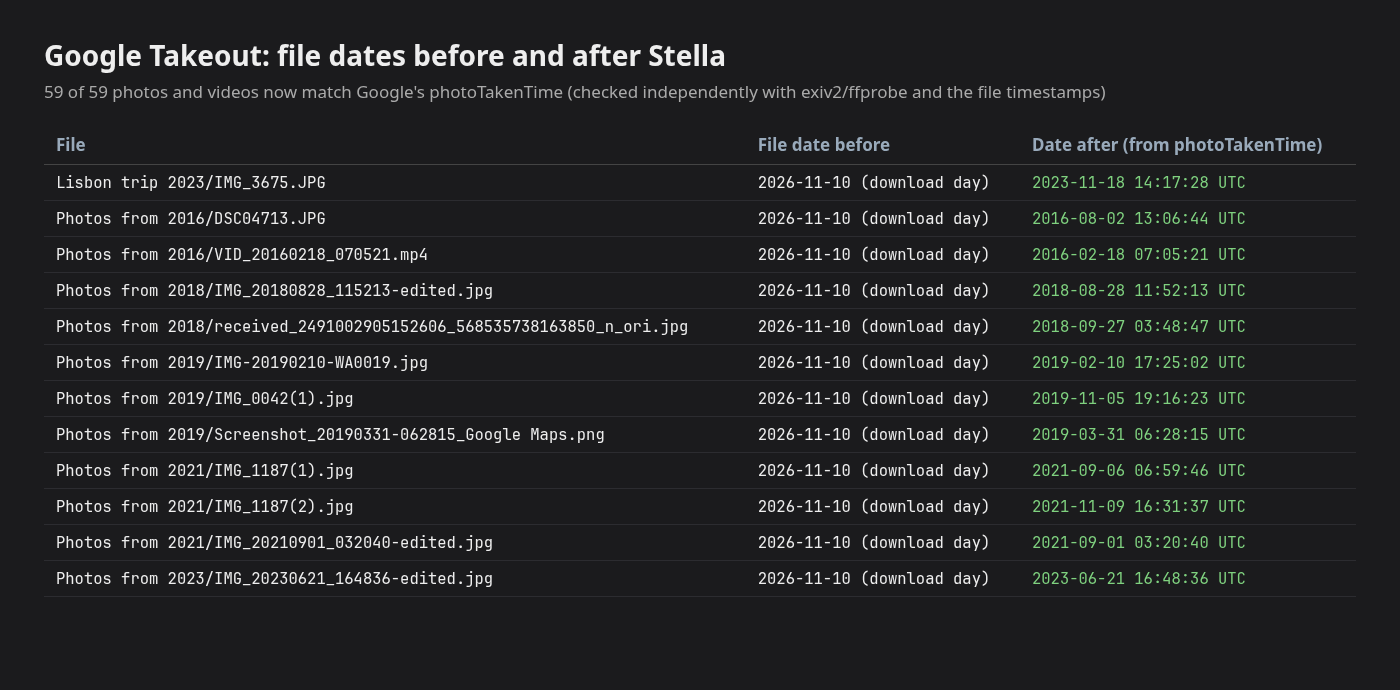
56 of 59 photos and videos got their real date on the first pass, and their 56 JSON files were deleted after a full backup. Stella left three “-edited” copies alone because they have no JSON of their own; one follow-up message gave them the same date as their originals. Checked afterwards, file by file: 59 of 59 match Google's photoTakenTime.
The Takeout folder is a test export made for this run, with the naming quirks of real exports (cut-off names, numbered copies, edited copies, an album). Stella worked about 3½ minutes, then under a minute on the follow-up; those waits are sped up 15× and 10×.
How Stella does it.
- Finds the Takeout folder (in the recording it looked in Downloads by itself) and reads every JSON file
- Matches each JSON to its photo or video, including cut-off names like
…supplemental-metada.jsonand numbered copies, whereIMG_0042(1).jpgbelongs toIMG_0042.jpg(1).json - Uses photoTakenTime, the date Google Photos shows, and ignores creationTime, which is only when the file was uploaded
- Tries the change on copies first, backs up the whole export, then writes the date into each photo's EXIF, each video's creation time and each file's modified date
- Checks every file afterwards, deletes only the JSON files whose date it applied, and tells you what it skipped
The prompt.
I downloaded my Google Photos with Takeout and all the dates are wrong and there are json files everywhere. Fix the dates and get rid of the json mess.
This is the exact prompt from the recording. If your files are somewhere else, say where.
Do it yourself.
Export only Google Photos
At takeout.google.com, select “Deselect all”, tick Google Photos, and choose .zip with the largest file size (50 GB) so the export is split into as few parts as possible. Google emails the download links when the export is ready; they work for about 7 days, and each part can be downloaded up to 5 times.
Unzip every part into one folder
Big Takeout exports come as several zip files, and a photo and its JSON can land in different parts. Extract all of them into the same folder, keep the original zips until you've checked the result, and don't delete any JSON yet: it's the only copy of the dates.
Run Google Photos Takeout Helper (GPTH)
Download GPTH from its GitHub releases page and install ExifTool too, or GPTH can only write dates into JPEG files. On Windows, double-click gpth.exe and answer its questions; on a Mac or Linux, run it from Terminal. Point it at the zips or your extracted folder and an empty output folder.
Or copy the dates with ExifTool
For new-style exports,
exiftool -r -d %s -tagsfromfile "%d/%F.supplemental-metadata.json" "-DateTimeOriginal<PhotoTakenTimeTimestamp" -ext jpg -overwrite_original Takeoutcopies each date into its JPEG photo. Run it again with%d/%F.jsonfor older names. Cut-off names and numbered copies won't match, so rename or fix those by hand.Fix the file dates and the edited copies
exiftool "-FileModifyDate<DateTimeOriginal" -r Takeoutsets each file's date to the photo's date, which is what Explorer and Finder sort by. Files ending in -edited have no JSON of their own; give them their original's date, or skip them.Check a few, then remove the JSON files
Open a handful of photos from different years in your photo app and check the dates, including a screenshot and a photo saved from a chat app, since those never had a camera date of their own. Once they're right, delete the .json files (on Windows, search the folder for *.json; in Finder, search for .json with the folder selected), or move them to a folder of their own if you'd rather keep the GPS and descriptions.
Where it stops.
- The recording was on Linux, where the tools it needed were already installed. On Windows or a Mac the same job needs a metadata tool such as ExifTool, so expect Stella to install one first.
- It deleted the JSON files without asking, because the prompt said to get rid of them. It made a full backup first and linked it in the chat, but the backup sits in Stella's own outputs folder, not next to your photos. Say “move the JSON files to a folder” if you'd rather keep them.
- It fixed dates only. It didn't sort photos into year folders, remove the copies that albums duplicate, or write GPS locations, because the prompt didn't ask; ask for those by name.
- It skipped the -edited copies on the first pass and needed a one-line follow-up for them. Check the list of skipped files it gives you.
- Your photos stay on your computer, but file names and the JSON text go to the AI model you use in Stella while it works.
Questions.
What are the JSON files in Google Takeout?
One per photo or video, holding what Google knew about it: the date it was taken (photoTakenTime), the upload date, GPS, the description and people tags. Google writes them beside the photos instead of into them, so most apps ignore them.
Can I delete the JSON files?
Only after the dates are in the photos. Before that, they're the only record of when each photo was taken. Afterwards they're safe to delete, unless you want the descriptions or GPS that a date-only fix leaves out.
Why do some JSON names look cut off?
Google shortens long names, so you'll see .supplemental-metada.json, .sup.json or a shortened photo name. Numbered copies are swapped too: photo(1).jpg goes with photo.jpg(1).json. That's why simple one-line scripts miss some files.
Why do all my Takeout photos have the same date?
The date your computer shows is the file's date, which becomes the day you unzipped the export. Camera photos usually still carry their own date taken inside the file, so a photo app that reads it looks fine. Screenshots, photos saved from chats, scans and some edited copies never had one, and for those the JSON is the only record.
Does Google Takeout remove metadata from my photos?
It doesn't strip what's already in the file, but anything you changed inside Google Photos, like a corrected date, a location you added or a description, lives only in the JSON. That's why the fix copies from the JSON rather than trusting the file.
Is the date in the JSON in my time zone?
No. photoTakenTime is a timestamp in UTC, while the date-taken field inside a photo has no time zone. Tools convert it to your computer's local time, so photos taken while travelling can come out a few hours off. That rarely moves a photo to a different day, but check any taken near midnight.
Why are some photos in two folders?
A photo that's in an album can appear twice: once in its “Photos from” year folder and once in the album's folder. Fix the dates in both, then remove the extra copies with a duplicate finder if you only want one.
Will Apple Photos or Windows Photos show the right dates afterwards?
Yes. Both sort by the date taken inside each file, so import the folder after the fix, not before. Videos use their own creation time, which the fix sets too. To file everything by year and month as well, see sorting photos into folders by date.
Is there a paid tool that does this?
Yes. MetadataFixer is a paid app built for exactly this, and GPTH is free and open source. Stella is free with the ChatGPT or Claude plan you already have, and does the same matching. It also handles the next job, like sorting the photos by year or tidying the Downloads folder they arrived in.
Is Stella free for this?
Yes. Free with the ChatGPT or Claude plan you already have. Sign in with your ChatGPT plan, or use your Claude plan through Claude Code, and this task costs nothing extra. New accounts also get a small free trial of Stella’s own models.
Can I control what Stella changes on my computer?
Yes. Stella works on Windows, Mac and Linux with your own files and shows each step in the chat, so you can watch it and stop it at any point. Tell it what it may not do, as the prompts on these pages do (“don't delete anything without asking”). In the Downloads recording it deleted nothing until it was told to go ahead. It also refuses commands that would wipe a whole disk, your home folder or system folders.
Checked against these sources on 13 November 2026.